# Features
## :battery: Power management
!!! danger "SCK2.3 needs a battery"
Due to the power needs of the SCK2.3 (and SCK2.2), it always needs a battery connected.
The Smart Citizen Kit features a micro USB slot and a LiPo Battery charger. The micro USB slot can be used with different power supplies: any USB-compatible power supply with 2A will do. Check [the power supply section](#power-supply) for more information.
!!! info "Is the Kit turning itself off?"
You will note that the kit seems to _turn itself off_. This is what we call `sleep-mode`, an operation mode implemented to reduce consumption. Check the [operation modes section](#operation-modes) below. The Kit is still collecting data and functioning properly.
### Battery duration
The Smart Citizen Kit has off-the-shelf support for LiPo batteries. If you got the Starter Kit, you should have already the 2000mAh battery that came with the Kit. The battery is meant to be a power option for short-term measurements (_roughly 2-3 days_) and a backup solution when the Kit is used for longer periods. If you want to take long-term measurements, we recommend permanently powering the kit via USB with a [power supply](#power-supply).
The battery duration is dependent on which sensors are enabled, and how frequently you take measurements and send data to the platform. All these options can be configured with [the shell](https://docs.smartcitizen.me/guides/getting-started/using-the-shell.md).
!!! info "Sensor and publication interval management"
If you want to save battery, the [basic interval](https://docs.smartcitizen.me/guides/getting-started/using-the-shell.md#set-recording-and-publication-intervals) for the sensors shouldn't be below 30 seconds. This is because the minimum stabilisation time the PM sensor requires to take stable readings is around 15-20 seconds. For this reason, **the minimum interval available without turning off the PM sensor between readings is 30 seconds**. If a lower interval is required, the PM sensor will be permanently `ON` and the battery won't last as long.
#### Battery calculator
You can use the battery calculator to estimate how much your battery should last.
!!! tip "SCK Battery Calculator"
!!! info "What's the SCK's Shell?"
Learn how to use the powerful SCK Shell. Get more details in our [guide](https://docs.smartcitizen.me/guides/getting-started/using-the-shell.md).
### Battery charging
The SCK has a micro USB port and can be charged like any smartphone or tablet using a dedicated adapter or a computer USB port.
We recommend using an external USB power adaptor instead of a computer USB port for quicker charging. You can also use a power bank or a [solar panel](https://docs.smartcitizen.me/hardware/addons/solar-panel.md).
### Power supply
The SCK needs 5V input via the micro USB connector. A normal 5V power charger can be used, as long as it's USB compatible, and provides 2A. For outdoor deployments, we recommend using a waterproof [power supply](https://docs.smartcitizen.me/hardware/addons/power-supply.md). Optionally, you can use a [solar panel](https://docs.smartcitizen.me/hardware/addons/solar-panel.md).
### Battery status
The SCK will display _user_ feedback via a set of LEDs. To show the battery status, we use the `STATUS` LED. There are two more LEDs, one that shows if the Wi-Fi antenna is ON, or if data is being transmitted via USB.
{: style="max-width:400px !important"}
If the `STATUS` LED is _aggressively_ flashing in orange , it indicates that the battery must be charged. The default 2000mAh battery **takes about 4 hours** to fully charge. If you have the USB charger connected, you will notice that when the battery is charging, the LED will flash in orange , and when it's fully charged, it will flash in green .
!!! tip "Other colors"
Remember that in addition to these colors, you will have the state color of the kit: _setup_, _online_, and _offline_ modes. Check the [operation modes](#operation-modes) section for more information.
## :triangular_flag_on_post: User interfaces
The [Data board](https://docs.smartcitizen.me/hardware/boards/data-board.md) features a set of LEDs that provide feedback to the user, as well as two buttons with different functionalities. The **`STATUS`** LED provides general feedback on the data board status, both on the [operation mode](#operation-modes) and the [battery status](#battery-status). Additionally, two buttons are provided for user action: a hardware **`RESET`** button, which literally does a full reset on the board, and an **`ON/OFF`** button, used to change the device's mode, turn on and off the device, and perform a _factory reset_. You can see both buttons below:
{: style="max-width:500px !important"}
### The **`ON/OFF`** button
The main button interaction is detailed below:
| Function | Button action |
|- |- |
| **ON** | Push the button |
| **OFF** | Push the button for 5 seconds |
| **CHANGE MODE** | Push the button multiple times to change mode between: *Setup* *Wi-Fi mode (online)* or *SD-Card mode (offline)* |
| **FACTORY RESET** | Push the button for 15 seconds to perform a full reset |
!!! info "Changing mode"
When you change the mode, the SCK will switch between *Setup* mode, and whatever mode you have configured (_online_ or _offline_).
For instance, if you configured your kit in _online_ mode, clicking the **`ON/OFF`** button will switch the SCK to _setup_ mode. Clicking it again will switch the SCK back to _online_ mode.
You can see it in action below (remember, the SCK 2.X series share the same data board!):

### The **`RESET`** button
This button is used for [troubleshooting](https://docs.smartcitizen.me/troubleshooting.md) your kit, or to [upgrade the firmware](https://docs.smartcitizen.me/guides/firmware/upgrading-the-firmware.md). Unless you are in any of these situations, you shouldn't need to touch this button! In any case, it's useful to know what it's for.
=== "SCK 2.1/SCK2.2"

=== "SCK 2.3"

!!! info "Using the button inside a box"
If you are using an SCK2.1 or SCK2.2 inside a box, it may be tricky to access the **`RESET`** button. Check the [enclosures page](https://enclosures.smartcitizen.me) for more options.
On the SCK2.3, we made a little hole in the [Urban Board](https://docs.smartcitizen.me/hardware/boards/urban-board.md) to make it easier to access the reset button.
### Local access point
A local access point (AP) is used to configure the SCK. You can connect to this AP with your Smartphone or computer, by connecting to a Wi-Fi network called "SmartCitizen[...]". To do so, make sure that the SCK is in [Setup Mode](#setup-mode).
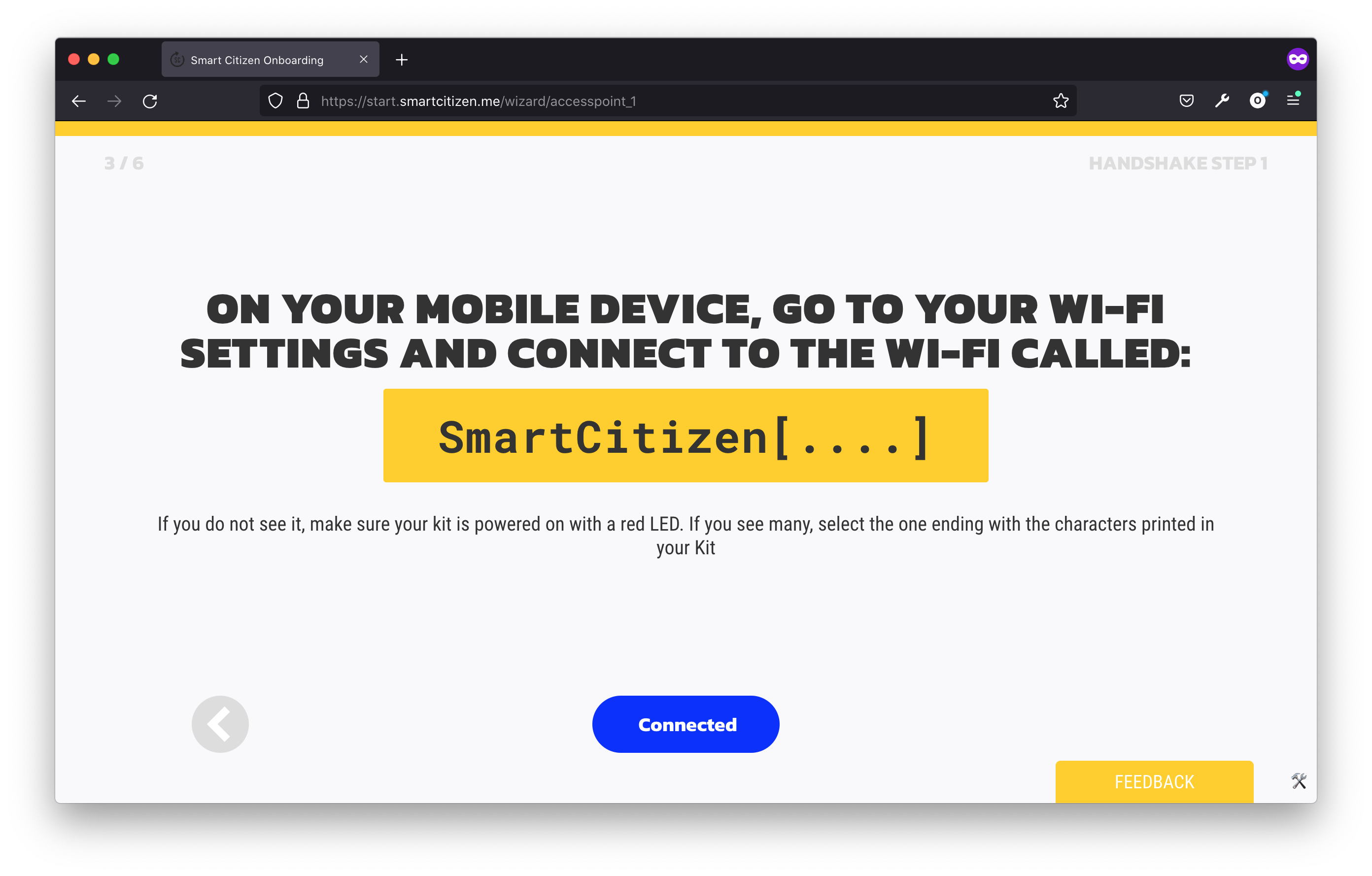
In your phone, something like below should pop-up:
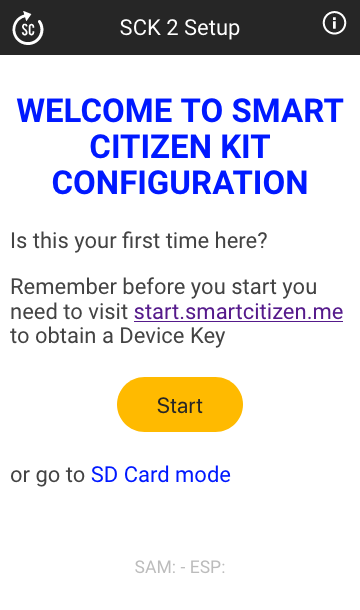
!!! danger "If nothing comes up"
In some cases, your phone will be disconected from the WiFi as it doesn't have access to the internet. Stay connected to it!
If nothing pop-up in your phone, open your phone's web browser and navigate to sck.me
## Operation modes
### Setup mode
In this mode, the kit is ready to be configured for [Wi-Fi mode](#wi-fi-mode) or for [SD-card mode](#sd-card-mode).
| LED color | Kit status |
| :-: | :-: |
| | :thumbsup: Ready for setup |
| | :battery: Ready for setup but battery is low, charge the Kit |
| | :battery: Ready for setup, battery charging |
| | :battery: Ready for setup, battery charged |
### Wi-Fi mode
Wi-Fi mode (or _online_ mode), is the most common mode for the Kit. In this mode, it will publish data to the [Smart Citizen Platform](https://smartcitizen.me/kits). If there is a micro SD card in the Kit, data will be stored in it too.
| LED color | Kit status |
| :-: | :-: |
| | :thumbsup: Collecting data online |
| | :warning: Warning. Collecting data but not sending it online |
| | ❌ Error. Not collecting data |
| | :battery: Collecting data online but the battery is low, charge the Kit |
| | :battery: Collecting data online, battery charging |
| | :battery: Collecting data online, battery charged |
| | :bed: Sleep-mode. Collecting data online and saving battery |
!!! warning
:white_check_mark: The kit supports Wi-Fi WEP, WPA/WPA2, and open networks which are common networks in domestic environments and small businesses.
:negative_squared_cross_mark: But, it **does not** support WPA/WPA2 Enterprise networks such as EDUROAM or networks with captive portals such as those found in Airports and Hotels.
!!! danger "Error in network mode"
If you configure the SCK with a network that is not visible (or working) at that precise moment, it will raise an error and will not collect data.
### SD-card mode
SD-card mode (or _offline_ mode), can be used if you do not have an internet connection available. In this case, the device will record the data on the micro [SD card](https://docs.smartcitizen.me/data/sd-card.md), in [CSV format](https://docs.smartcitizen.me/data/sd-card.md#sensor-readings). You can take a look at this data in a spreadsheet, or upload it to the [Smart Citizen Platform](https://smartcitizen.me/kits) by using the [CSV Upload](https://docs.smartcitizen.me/guides/getting-started/uploading-sd-card-data.md) option, or via the [API](https://docs.smartcitizen.me/data/data-platform.md#api).
| LED color | Kit status |
| :-: | :-: |
| | :thumbsup: Collecting data offline |
| | :warning: Warning. Collecting data but not storing it in SD card |
| | ❌ Error. Not collecting data |
| | :battery: Collecting data offline but the battery is low, charge the Kit |
| | :battery: Collecting data offline, battery charging |
| | :battery: Collecting data offline, battery charged |
| | :bed: Sleep-mode. Collecting data offline and saving battery |
!!! info "Weird files?"
The CSV files in the SD card have the following naming: YY-MM-DD.CSV. However, sometimes you may find some extra files:
- **Before `0.9.9`** firmware version: the files are YY-MM-DD.01, YY-MM-DD.02...
- **After `0.9.9`** firmware version: the files are YY-MM-DD_01.CSV, YY-MM-DD_02.CSV...
These are data files that the sensor creates when it _reboots_, to avoid file corruption. It does so by creating a new file on the SD card. In _older_ firmware versions, it's normal to have some additional files, especially because of the [sanity reset](#sanity-reset). Note that **after the `0.9.9` firmware version** you should only get one file per day, even with the _sanity reset_. If you have more than one, the kit has reset.
### Warning and error levels
After firmware version `0.9.8`, a new `WARNING` mode was introduced. This feature gives feedback to the user in case something _not too bad_ has happened, and the kit is able to still collect data, but not store it on the micro SD card or send it to the platform. This `WARNING` mode is a new addition to existing `NORMAL` and `ERROR` modes.
Below we explain what each mode does:
- `NORMAL`: no problem! **The `STATUS` LED is _slowly_ breathing** and readings are being collected normally.
- `WARNING`: the SCK can take readings, but can't save them to the micro SD card (either it doesn't find it or there is a problem with it) or send them to the platform (problem with network). Data is stored in the onboard [Flash memory](#internal-memory) and will be stored on the SD card or sent to the platform after the problem is solved: either because the network comes back or the SD card is reinserted (or fixed). **The `STATUS` LED is _partially blinking_** in this situation.
- `ERROR`: can't take readings. Either there is "no time", or there is a big problem that prevents data to be read. **The `STATUS` LED is _agressively blinking_**.
!!! info
:book: Remember, you can check your SCK firmware version quickly following this [guide](https://docs.smartcitizen.me/guides/firmware/getting-firmware-information.md).
### Special status
You will see these colors _only_ in special moments, most commonly when the kit is booting or is being updated.
| LED color | Kit status |
| :-: | :-: |
| | :hourglass_flowing_sand: Busy, please wait! |
| | :wrench: Software update is ongoing! |
| | :computer: Shell mode [more info here](https://docs.smartcitizen.me/guides/getting-started/using-the-shell.md#shell-mode-shell) |
!!!warning "Permanently in one color?"
That's not normal, so either [reset](#the-reset-button) your kit or write us on the [forum](https://forum.smartcitizen.me).
## Auxiliary connector
The [Data Board](https://docs.smartcitizen.me/hardware/boards/data-board.md) features a standard [Grove Connector](https://wiki.seeedstudio.com/Grove_System/) to connect external **sensor** modules. The connector supports an independent I2C bus by default, but with software, it can be configured to support other uses (GPIO, I2C, and UART). It can supply power **up to 750mA**, and it can be enabled or disabled by software to save energy.

!!!info "There is a lot more to it!"
The Smart Citizen Kit is designed with a modular approach in mind. This means that the [Urban Board](https://docs.smartcitizen.me/hardware/boards/urban-board.md) is only a selection of low-cost sensors for air quality, but the hardware itself can be expanded for other use cases such as a more advanced air quality monitoring setup, soil monitoring, or water quality. Check out our [sensor library](https://docs.smartcitizen.me/knowledge.md) and our [guide on how to use them](https://docs.smartcitizen.me/guides/getting-started/third-party-sensors.md).
## Software Updates
Sofware updates are released in the [firmware repository](https://github.com/fablabbcn/smartcitizen-kit-2x/releases). These updates will need to be applied periodically to the [two main microcontrollers of the Data Board](https://docs.smartcitizen.me/hardware/boards/data-board.md#microcontrollers): the Atmel SAMD21 (main processor) and the Espressif ESP8266 (Wi-Fi module). Check the instructions in the [firmware upgrade](https://docs.smartcitizen.me/guides/firmware/upgrading-the-firmware.md) guide for more information.

## Special features
### Internal memory
After firmware version **`0.9.8`**, a new [flash memory](https://docs.smartcitizen.me/hardware/firmware/features/#flash-storage) feature was implemented. The flash memory feature is used to store data internally before publishing it to the [Smart Citizen Platform](https://smartcitizen.me/kits) or storing it into the micro SD card. This allows us to still collect data when there is no Wi-Fi, when the SD card is not present or corrupt, or to recover data in general. This feature is very useful in many situations, for instance, whenever we cannot use permanent network connection, or you are using the SCK while moving around in the city. The flash memory feature changes completely how readings are handled, separating sensor readings and the publication or storage process. This also affects how errors are handled, allowing for the introduction of a new `WARNING` mode.
!!! tip "Check and upgrade the firmware version"
:bulb: Remember, you can check your SCK firmware version quickly following this [guide](https://docs.smartcitizen.me/guides/firmware/getting-firmware-information.md). Later, learn [here](https://docs.smartcitizen.me/guides/firmware/upgrading-the-firmware.md) how to update it.
Of course, everything has its limitations: the flash memory follows a _[circular buffer](https://en.wikipedia.org/wiki/Circular_buffer)_, which means that whenever the flash memory is full, it will start overwriting data, no matter if it was published or not. In a normal SCK, the flash memory will last for some weeks though (more details in the [flash memory section](https://docs.smartcitizen.me/hardware/firmware.md#flash-storage)), but it's better to always be on the safe side and to avoid losing any data, make sure to check the **`STATUS`** LED for any warnings or errors.
In the particular case of the _Wi-Fi_ mode, two possible things can happen:
- If the **SCK has time** but it doesn't have a stable network connection, it will attempt **three times** to connect to the network. If all 3 attempts fail, it will enter **`WARNING`** mode (see [here](#operation-modes) for more information). After these initial attempts, by default, it will try again after 15' (or 5 times the publication interval, in case you changed it). This allows us to avoid wasting energy by trying to connect to an unexisting or unstable network, but it also has a side effect: after the network connection is back, the next attempt to connnect will take some time, and **it will take a maximum of 15' to connect to it** and start pushing data. If you are in a hurry, click the [**`ON/OFF`** button](#the-onoff-button) twice (blue->red->blue mode) or [**`RESET`**](#the-reset-button) the kit and data will start being posted right away.
- On the contrary, **if the SCK doesn't have time**, then it will always be in **`ERROR`** mode until it manages to connect to the network and get _the time_ from it. It will keep trying to connect forever.
!!! warning "Be aware of _the time_"
Having a non-permanent Wi-Fi connection means that we can also risk entering error mode if the SCK runs out of battery. This is because the SCK obtains _the time_ from the internet (or from a phone during the SD card setup process). **Losing the network connection and running out of battery means the device will lose the internal clock time, and the device will stop taking readings until it has power and can connect to the internet to sync, again.**
!!! info "Debugging commands"
Check [this guide](https://docs.smartcitizen.me/guides/getting-started/using-the-shell.md#accessing-the-flash-memory-flash) for more debugging commands.
### Sanity reset
The kit will force reboot itself every night at 00:00 UTC. We call this _sanity reset_ and it's done to prevent _simple_ issues to build up. Until firmware **0.9.8**, the _sanity reset_ took place at 2am UTC, but it was changed on **`0.9.9`** to 00:00 UTC to avoid creating unnecessary CSV files in the SD card because of this reset.
!!! danger "You can disable this"
This reset will cut all power to internal and external sensors, and potentially affect their readings. You can disable this feature [using-the-shell](https://docs.smartcitizen.me/guides/getting-started/using-the-shell.md#disable-sanity-reset-config).
### Massive storage mode
The `Massive storage mode` is mostly used to [upgrade the SAMD21 firmware](https://docs.smartcitizen.me/guides/firmware/upgrading-the-firmware.md), by a simple drag-and-drop. However it also has interesting files:
```
CURRENT.UF2
INDEX.HTM
INFO_UF2.TXT
```
- `CURRENT.UF2`: your current firmware binary file
- `INDEX.HTM`: a link to the [firmware current releases page](https://github.com/fablabbcn/smartcitizen-kit-2x/releases/)
- `INFO_UF2.TXT`: information about the bootloader version, hardware model and board:
```
UF2 Bootloader v2.0.0-adafruit.5-3-g6402020-dirty SFHWRO
Model: Smartcitizen Kit 2.0
Board-ID: SAMD21G18A-sck2-v2
```
### SD card access
You can access files from the SD card using-the-shell. This is described in the [Data - SD card Section](https://docs.smartcitizen.me/data/sd-card.md#console-access).